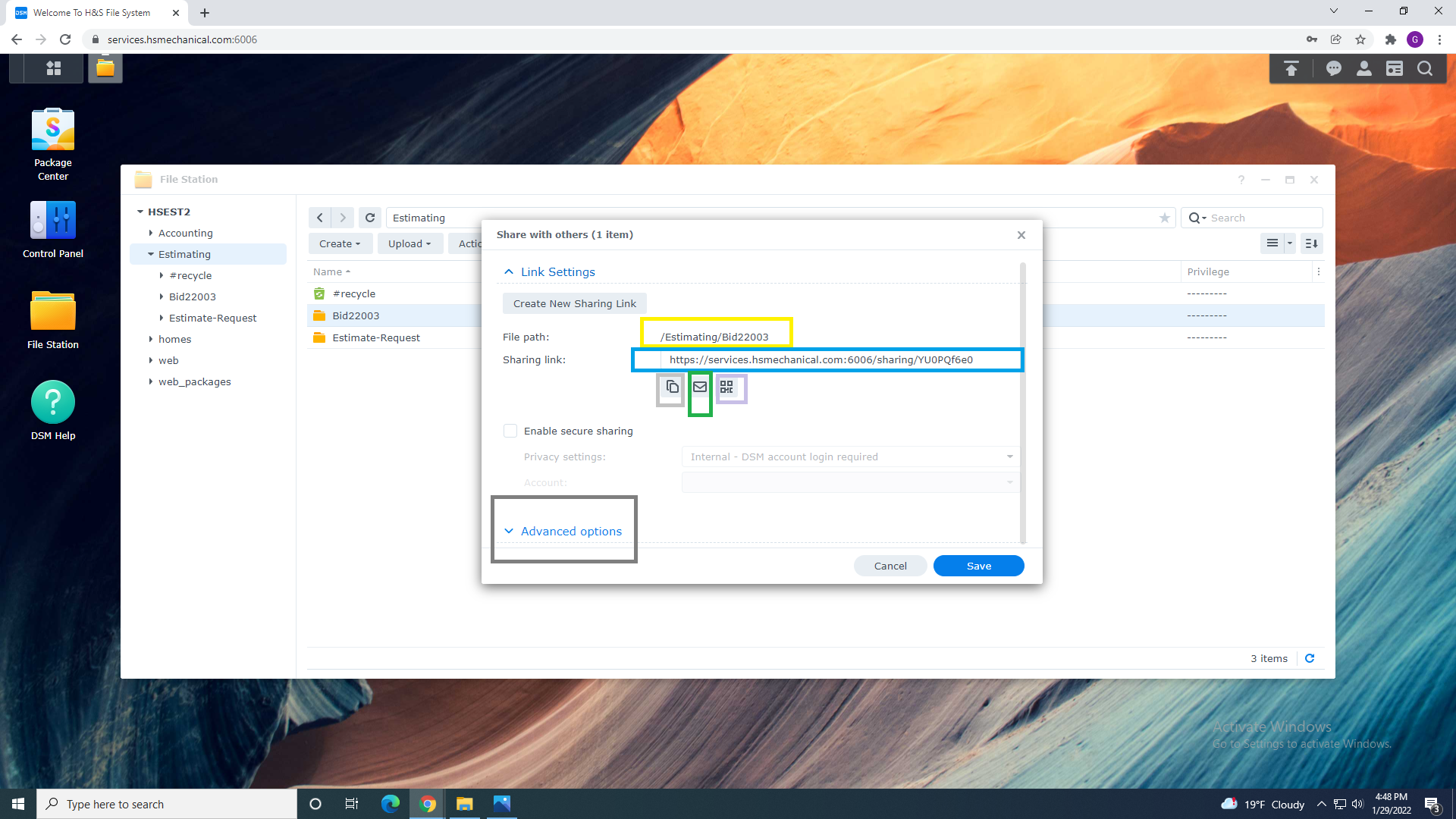
Verify That you are sharing Correct Folder Shown above in "Yellow "
1A. File Path = Yellow
1B. Share Link = Blue
1C. Share Link Copy = Light Gray
1D. Send Share Email = Green
1E. QR Code= Pink
1F. Advanced Options = Dark Gray
2. Advanced functions allow you to limit the amount of time the folder is available for access and/or limit the number of times the folder can be accessed.
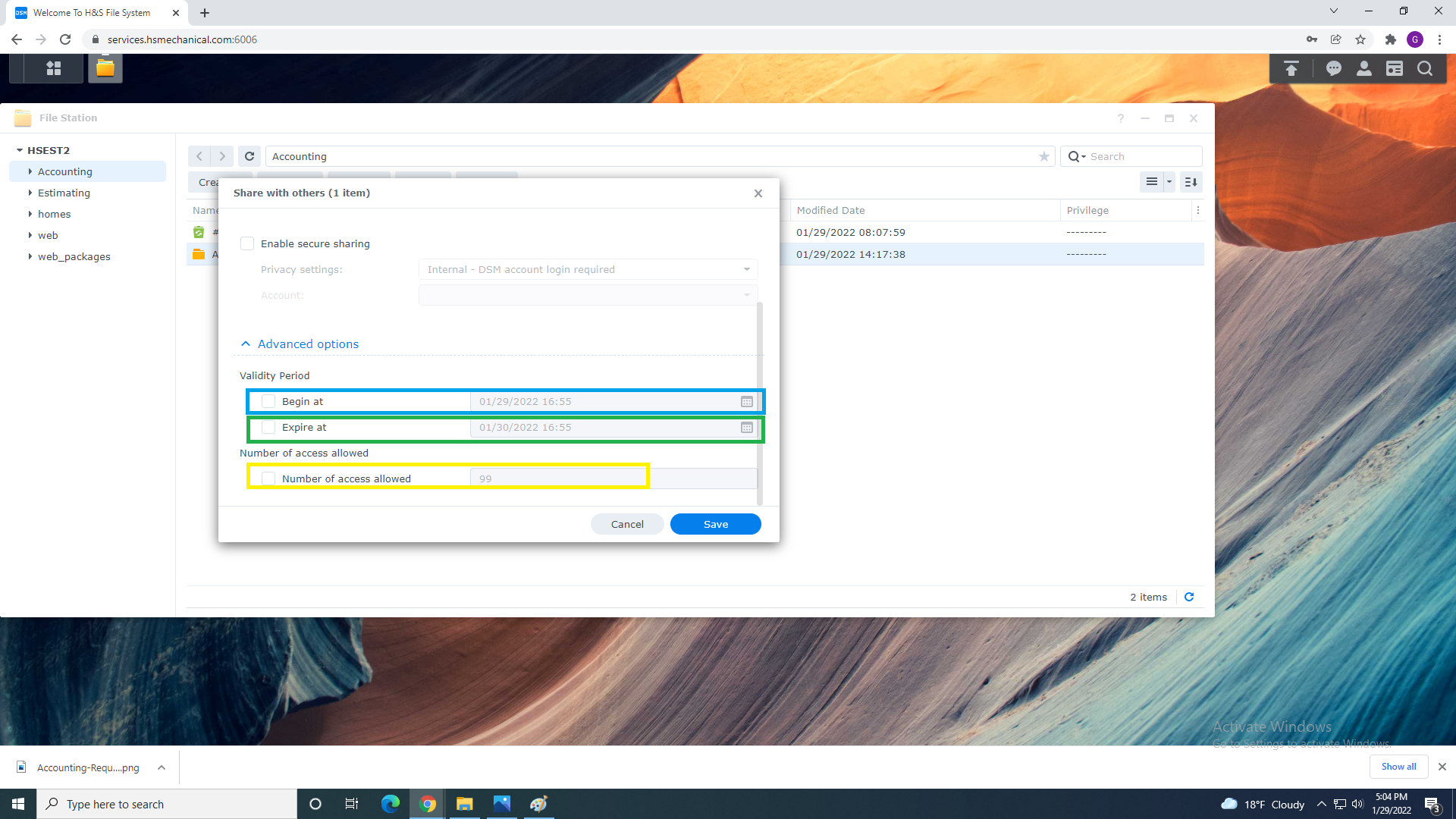
2A. Share Time Start = Blue
2B. Share Time End = Green
2C. Number Of Times Share can be Accesed = Yellow
3. You can choose multiple advanced options when sharing file or folders:
4. Example 1. = Sharing Files for Period of time
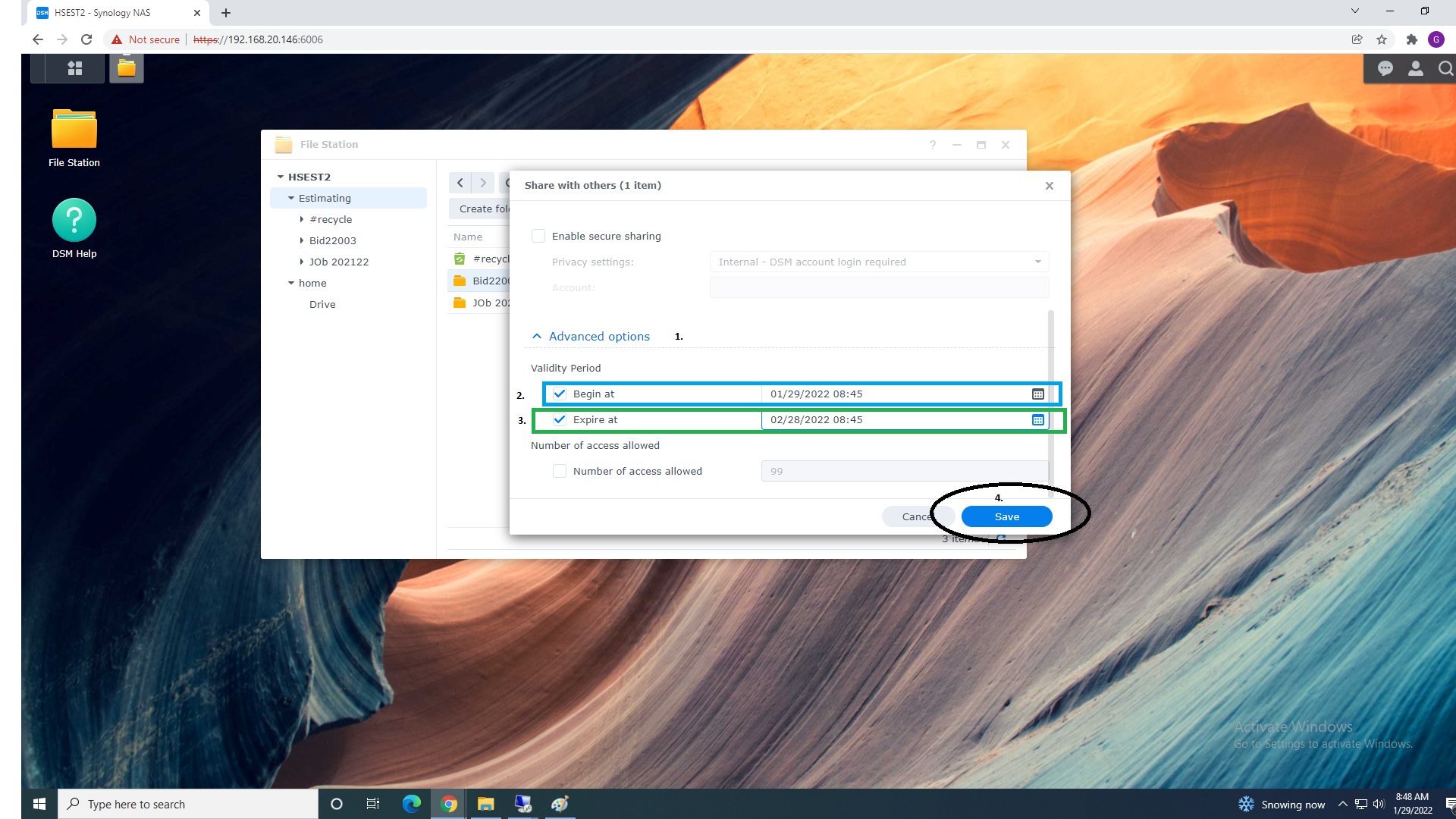
4a. Select Check mark (square on Left) for Begining (Blue) than Select time /date option on the right
and select Share begining Time.
4b. Select Check mark (square on Left) for Expire at (Green) than Select time /date option on the right
and select Share Expire Time.
4c. Scroll Up to the Link Menu and select Copy Link than hit Save to Finish Share Process.

5. Example 1. = Sharing Files with limit number of Access
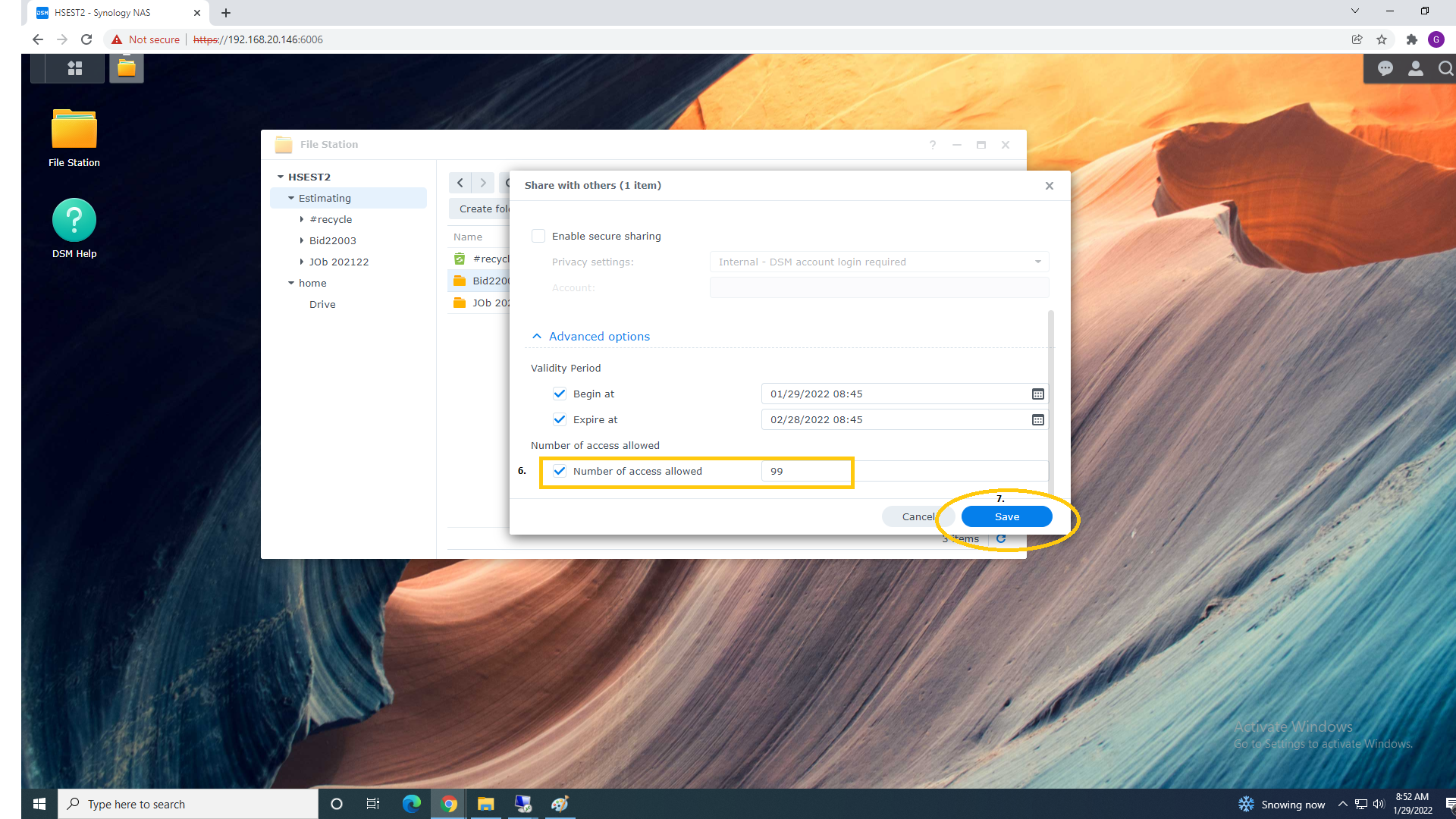
5a. Select Check mark (square on Left) for Numer of times user can Access Folder/Files : in our Example is set to 99 times
5b. Scroll Up to the Link Menu and select Copy Link than hit Save to Finish Share Process.
6. You can always check the status of a folder or Disable shared folder by going to Actions & Share Menu Again.